Archiving Rare Vinyl to 24-bit FLAC: A USB Turntable Guide
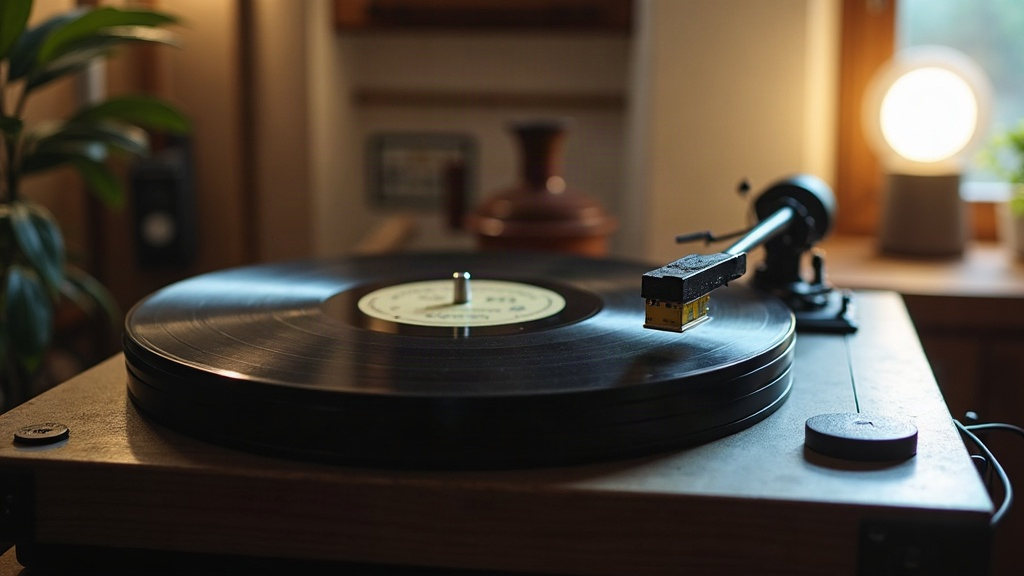
If you’ve got rare or out-of-print vinyl sitting in your collection, digitizing it as 24-bit FLAC is hands down the best way to lock in its sound quality for the next few decades. This guide takes USB turntable owners through the whole process, from cleaning records to the final metadata pass, so the end result sounds great and holds up over time.
Why 24-bit FLAC Instead of MP3 or 16-bit WAV?
FLAC (Free Lossless Audio Codec) compresses audio without throwing anything away, which is the opposite of what MP3 or AAC do. And recording at 24-bit instead of the standard 16-bit buys you a few real advantages:
- More headroom while recording, so loud passages don’t clip on you unexpectedly.
- Finer dynamic resolution, which matters a lot if you plan to run noise reduction or EQ correction down the line.
- A genuine archival master that you can downsample later (to 16-bit/44.1kHz CD quality, or any compressed format) without ever having to put the needle back on that record again.
Think of the 24-bit FLAC file as your negative film. You only shoot it once, so get it right the first time.
What You’ll Need
- A USB turntable (Audio-Technica AT-LP120X and Pro-Ject Debut Carbon with USB phono stage are both solid picks), or a regular turntable paired with a separate USB audio interface.
- A record cleaning kit. A carbon fiber brush is the bare minimum; for rare, dusty finds, a wet cleaning machine (Spin-Clean or an ultrasonic cleaner) makes a real difference.
- Recording software: Audacity (free), Reaper, or whatever app came bundled with your turntable.
- A quiet computer with decent storage. Budget roughly 250-350MB per track at 24-bit/96kHz, which works out to about 1-2GB per album side.
Step 1: Clean the Record First
Don’t skip this. Dust and static cause pops and crackle, and those are way harder to fix in software than to just wipe off the vinyl beforehand.
- Run a carbon fiber brush over the surface before every play.
- For anything rare or picked up secondhand, do a proper wet clean with a cleaning solution and microfiber applicator, then vacuum or let it air-dry.
- Hold the record under a bright light and check the grooves for leftover debris.
Step 2: Set Up Levels Correctly
Gain staging trips up almost every beginner at some point.
- Hook up your USB turntable and fire up the recording software.
- Play the loudest track on the record first so you can calibrate your levels against it.
- Set the input gain so peaks land around -6 dB to -3 dB. Never let anything touch 0 dB; digital clipping can’t be undone once it happens.
- Record at 24-bit depth and 96kHz sample rate. 44.1kHz will work in a pinch, but 96kHz gives you much more room to maneuver if you ever want to restore the audio later.
Step 3: Record Each Side in One Pass
- Capture the entire side as one continuous file. Don’t pause or stop between tracks.
- Leave a few seconds of silence before the needle drops and after the final track fades out. That silence comes in handy later for noise-profile sampling.
- Keep the room as quiet as possible. HVAC hum, a fan, even a nearby phone charger can sneak audible noise into a 24-bit recording.
Step 4: Split and Clean Up Tracks
- Use Audacity’s “Silence Finder”, or just place manual markers, to break the continuous recording into separate tracks.
- Apply light click/pop removal (Audacity’s “Click Removal” does the job), but stay away from aggressive noise reduction. Push it too hard and it smears transients and dulls everything.
- Normalize peak levels only if you really need to, and skip heavy compression entirely. The whole point of this exercise is a dynamic, lossless master, not a flattened one.
Step 5: Export to 24-bit FLAC
- In Audacity: File > Export > Export as FLAC, then pick 24-bit PCM and whichever sample rate you recorded at.
- Stick to a consistent file naming pattern:
Artist - Album - 01 - Track Title.flac.
Step 6: Tag Your Metadata Properly
Good metadata is what makes an archive actually usable years down the road, not just a pile of files.
- Use Mp3tag or MusicBrainz Picard to fill in artist, album, year, genre, and track numbers.
- Embed high-resolution cover art (1000x1000px minimum) directly into the FLAC file itself.
- Drop a note in the comment field about the source, something like “Original pressing, cleaned and digitized 2026.” For rare or collectible releases, that detail is genuinely worth having later.
Common Mistakes to Avoid
- Recording at 16-bit because the files are smaller. You give up headroom permanently, and there’s no getting it back.
- Skipping the cleaning step because you assume the record is “already clean.”
- Overdoing the noise reduction until the vinyl sounds flat and artificial.
- Forgetting to back up the FLAC archive in at least two places (an external drive plus cloud storage is the minimum).
Conclusion
None of this is rocket science, but it does reward patience. Clean the record properly, dial in your USB turntable’s gain, record each side in one continuous pass, and tag everything carefully afterward. Do it right once and you end up with a lossless, future-proof digital twin of a record that could otherwise warp, fade, or just vanish from the used bins forever.